Microsoft Office 2024 Professional Plus
Get the latest version of Microsoft Office with enhanced features, improved performance, and lifetime activation.
Download Office 2024 Installer
Direct download of the official Microsoft Office 2024 installer for a seamless installation experience.
DOWNLOAD OFFICE 2024 NOWChoose Your Preferred Guide
Complete Installation Guide
IMPORTANT: Before installation, ensure you remove any existing Office installations including Office 365 trials. Failure to do so may cause activation issues.
NOTE: The video above provides a visual guide to complement our written instructions.
1 Remove Previous Office Versions
Before installing the new Office package, please ensure that all old Office versions, including OneDrive, are uninstalled from your computer.
To ensure complete removal of old Office versions, you can use the Microsoft Tool for Simple Bug Fixes. Microsoft provides a detailed guide on uninstalling all old Office versions, especially if you've used Microsoft 365 before.
- Open Control Panel and navigate to Programs > Uninstall a program
- Locate and uninstall ALL Microsoft Office applications (Office 365, Office 2019, Office 2016, etc.)
- Also remove OneNote and OneDrive if present
- RESTART YOUR COMPUTER after completing the uninstallation process
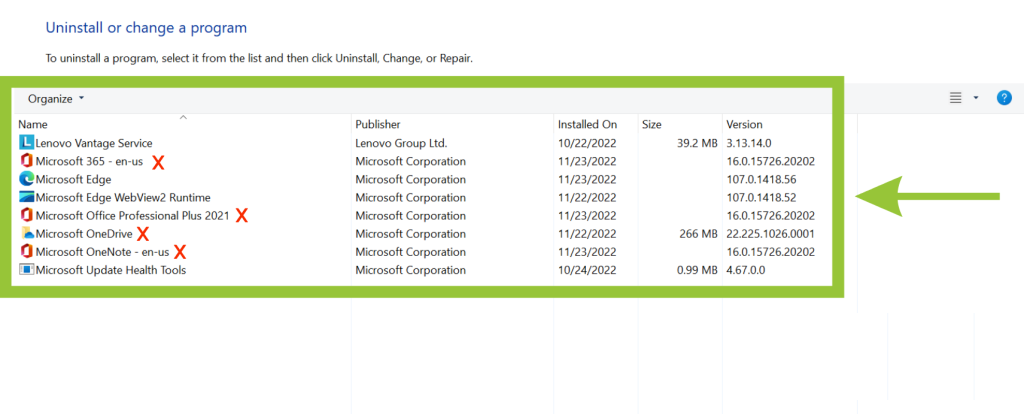
Removing MS Office applications will not affect your files, as they are securely stored on your device and can be easily accessed with the new Office applications.
2 Install Office 2024
- Click the Download Button above to get the Office 2024 installer
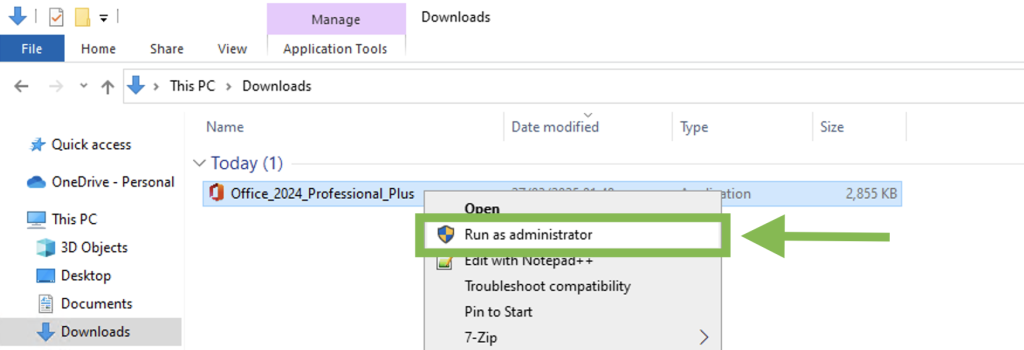
- Once downloaded, navigate to your Downloads folder
- Right-click on Office_2024_Professional_Plus.exe
- Select Run as administrator from the context menu
- Click Yes when prompted by User Account Control
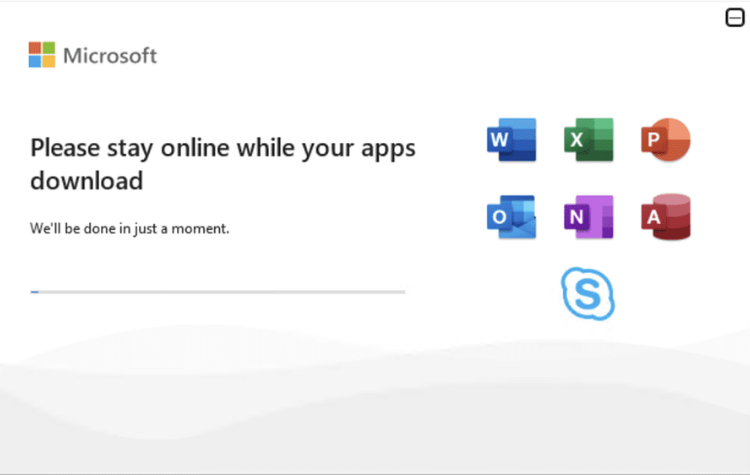
- The installation will begin automatically - this process typically takes 5-10 minutes
- Do not interrupt the installation process
3 Activate Office
- Launch Microsoft Word from your Start Menu or Desktop
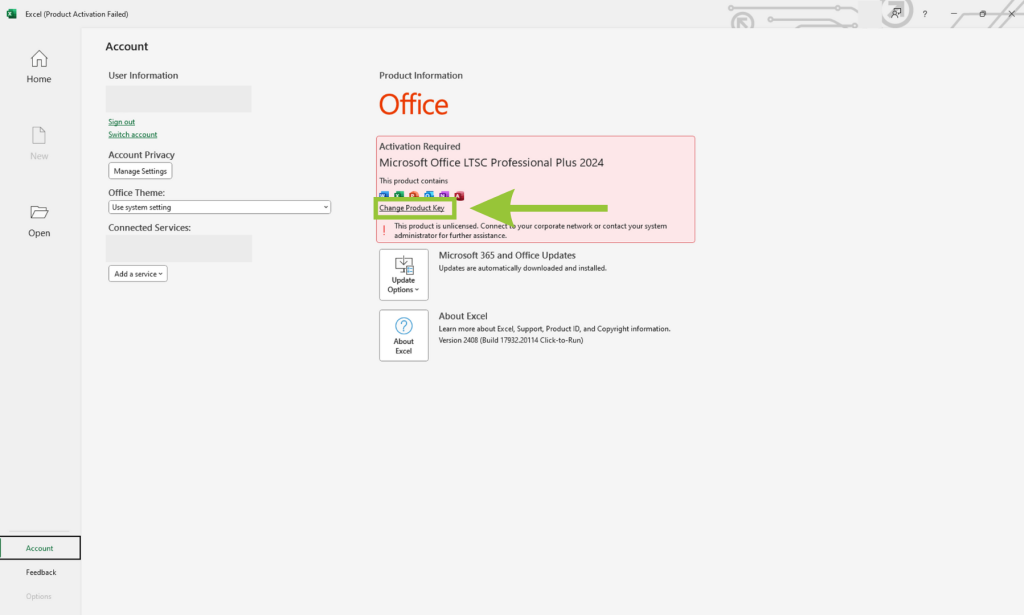
- Click on File in the top-left corner, then select Account from the left sidebar
- Click Change Product Key on the right side of the window
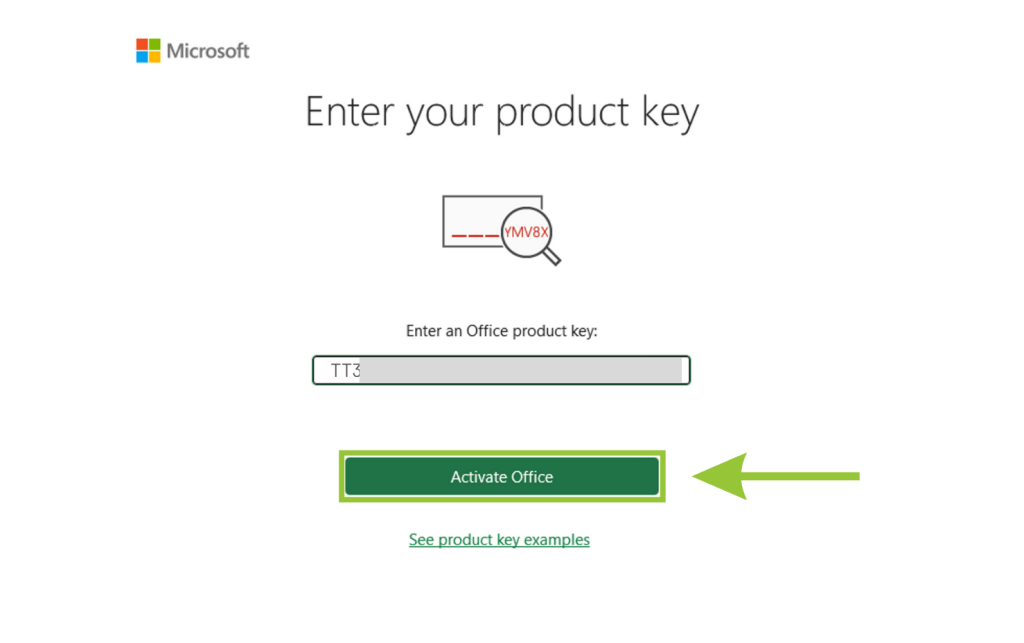
- Enter your 25-character product key when prompted
- Click Activate Office to begin the activation process
- Close Word completely and reopen it to finalize activation
- If an activation wizard appears, select Online Activation and follow the prompts
- Your Office 2024 installation is now permanently activated
Need assistance? Contact our support team at info@rcsoftware.co.uk with a detailed description of any issues.
What's Included
- Word 2024
- Excel 2024
- PowerPoint 2024
- Outlook 2024
- Access 2024
- OneNote 2024
- OneDrive 2024
Key Benefits
- Lifetime activation
- Free updates
- Full offline installer
- Compatible with Windows 10/11
- No subscription required
- 24/7 customer support
DIGITAL Delivery
Immediate delivery guaranteed.
Customer support
Always available.
Satisfied or refunded
Total satisfaction guarantee.
TrustedShops
Buy with certified confidence.
Frequently Asked Questions
Yes, this is the genuine Microsoft Office 2024 Professional Plus software. We provide legitimate product keys for activation directly through Microsoft's servers.
We want to clarify that our product keys for Microsoft Office are one-time activation keys, offered at competitive prices below market rates. These keys and downloads are authentic and designed to provide affordable access to Microsoft products.
Your product key is intended to activate installed Microsoft Office applications. After purchase, ensure the key is securely stored on your device. For seamless usage, log in using your email credentials. Please note, the product key cannot be used on setup.office.com. Instead, logging in with your registered email will grant you smooth access to the application on your device. To activate your product key, follow these steps:
- Click on the "Windows Start" button.
- Open the Word application on your computer.
- Navigate to My Account.
- Log in with your email.
- Click on "Activate Product."
If you encounter any challenges or have further questions during this process, please feel free to contact us for assistance at info@rcsoftware.co.uk
Pinning Microsoft Office Apps to Your Desktop in Windows PC:
- Open the Start Menu: Click the Start button or press the Windows key on your keyboard.
- Find the Office App: Scroll through the list of apps or use the search bar at the top to find the Microsoft Office app you want to pin (e.g., Word, Excel, PowerPoint).
- Pin to Taskbar: Right-click on the app and select Pin to taskbar. This will add the app to your taskbar for quick access.
- Pin to Start Menu: Right-click on the app and select Pin to Start. This will add a tile for the app in the Start menu.
By following these steps, you can easily access your Office apps directly from your desktop, taskbar, or Start menu on your Windows PC.
If you need further assistance or encounter any issues during this process, please feel free to reach out to us at info@rcsoftware.co.uk.
If you experience any activation problems, please ensure you've completely removed previous Office versions and restarted your computer. If issues persist, contact our support team with the exact error message for assistance.
Each product key is valid for a single installation. If you need to install on multiple devices, you'll need separate licenses for each computer.
This version is specifically designed for Windows operating systems. For Mac users, we recommend Office for Mac 2024 which is available separately.
Removing MS Office applications will not affect your files, as they are securely stored on your device and can be easily accessed with the new Office applications.
If you have any more questions, please feel free to contact us at info@rcsoftware.co.uk for further assistance.
Before installing the new Office package, please ensure that all old Office versions, including OneDrive, are uninstalled from your computer.
To ensure complete removal of old Office versions, you can use the Microsoft Tool for Simple Bug Fixes. Microsoft provides a detailed guide on uninstalling all old Office versions, especially if you've used Microsoft 365 before.
If you encounter any challenges during this process or have further questions, please don't hesitate to reach out to us at info@rcsoftware.co.uk for assistance.
Need Help? Contact Our Support Team
📧 info@rcsoftware.co.uk | ☎️ 07351805913
We typically respond within 2-4 hours during business days
Thank You for Choosing RC Software!
Your satisfaction is important to us. Please consider leaving a review on Groupon - it helps us continue providing quality software solutions!